XE Vault
An app for a spare iPhone or Android phone that you keep in airplane mode. It holds your XE keys and talks to nothing else: a request comes in through the camera, and the signature goes out as a QR code on its screen.
- Public TestFlight beta: coming soon
- Android build: coming soon


- Runs on
- A spare iPhone or Android phone
- Networking code
- None
- Networks
- XE Sim and the XE testnet
- Keys kept in
- Secure Enclave, StrongBox or TEE
From a spare phone to a signature
Set the phone up once. After that, every signature is a scan, a read and a hold.
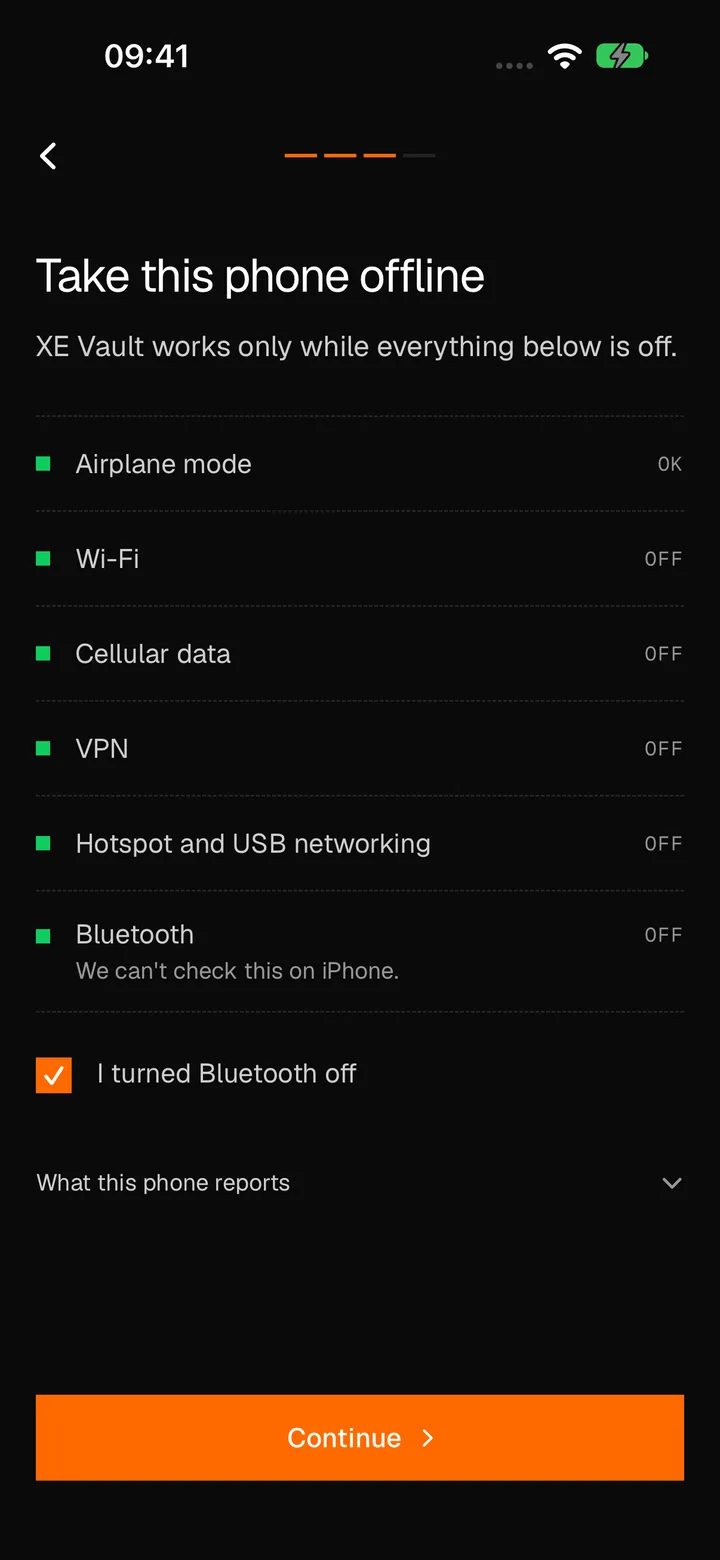
Take the phone offline
Give it a passcode and turn on airplane mode. XE Vault checks that the phone is offline before it lets you create a key.
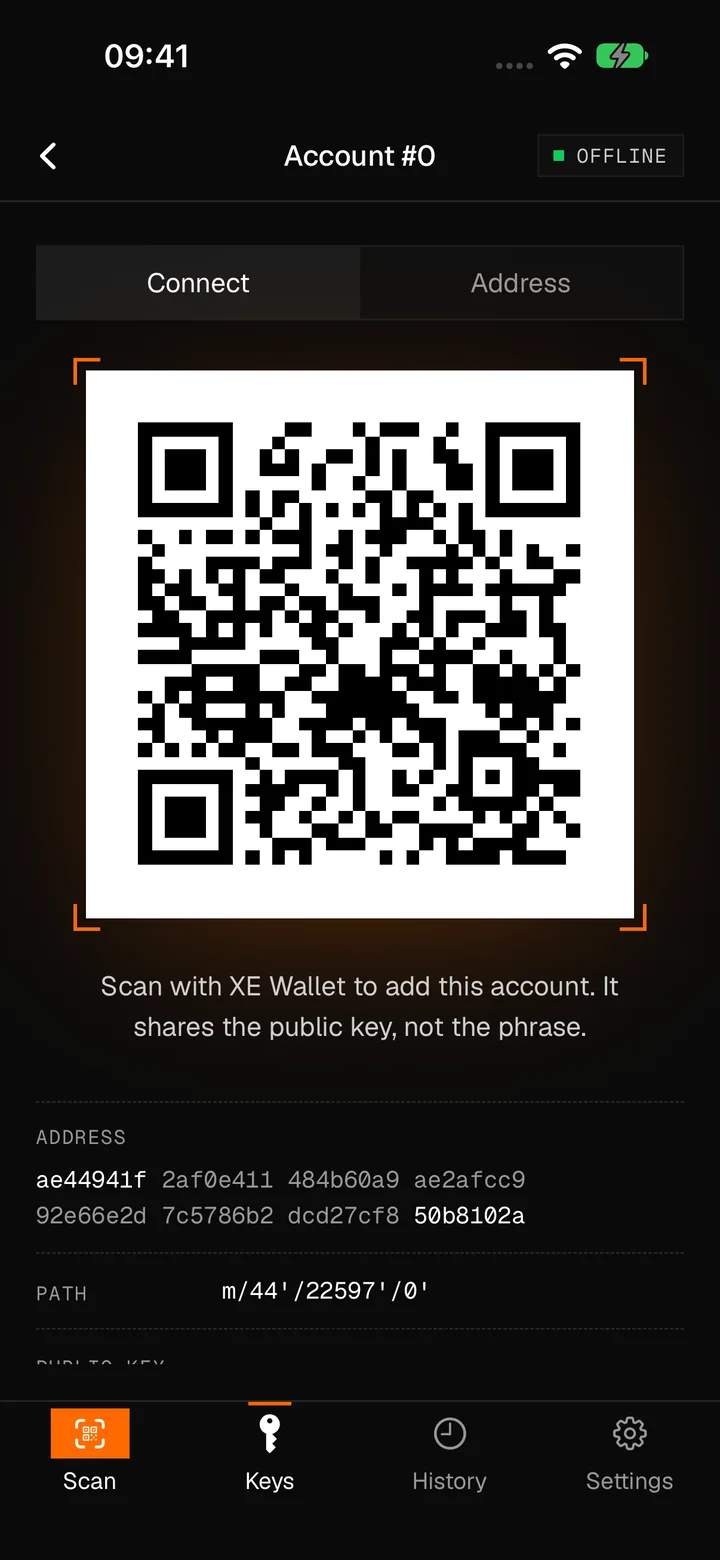
Pair it with an online wallet
Create a key set and write its words on paper. Then pair it with XE Wallet, the Web Wallet or the XE extension by QR code. Only public keys leave the phone.
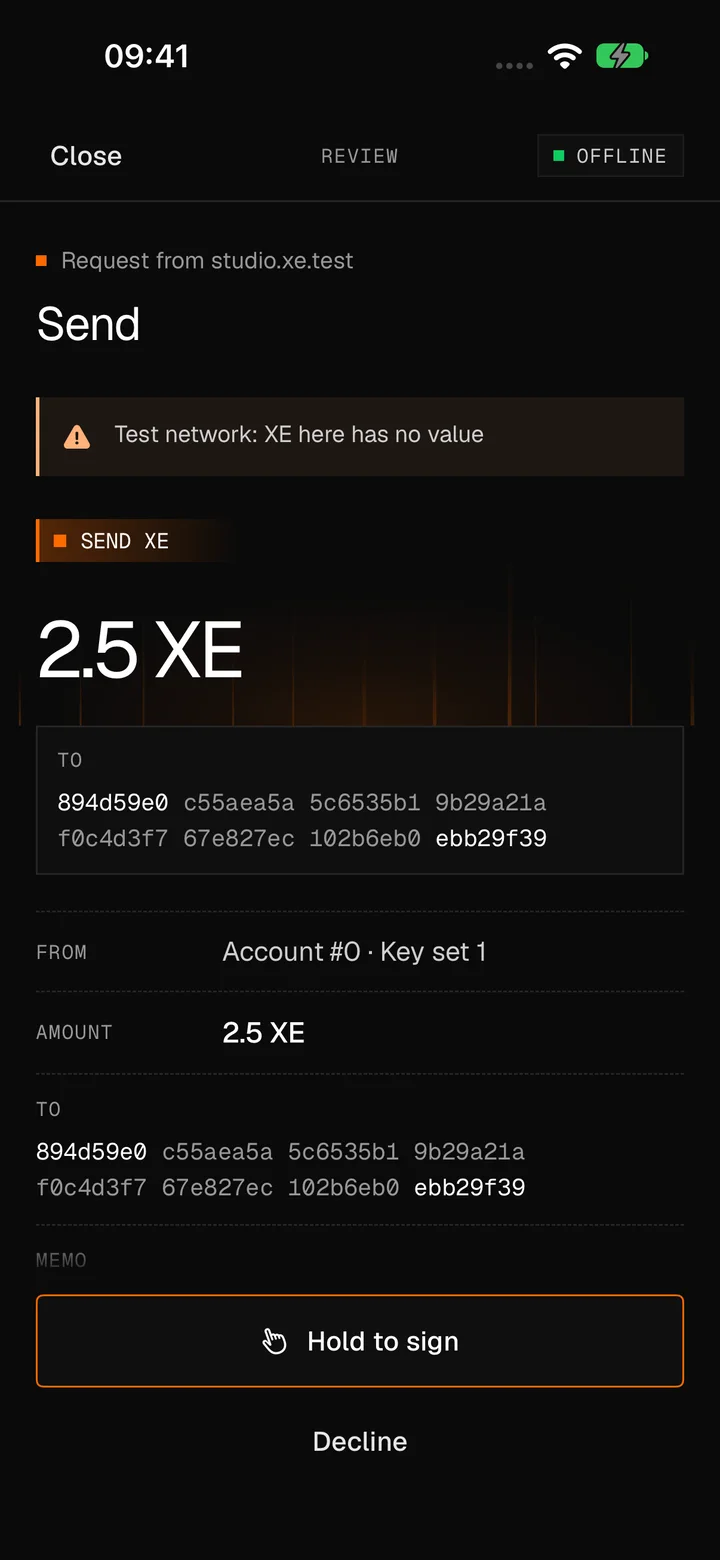
Read the request
The online wallet shows a request as a QR code. XE Vault scans it and shows every field. Hold to sign, then Face ID or your passcode.
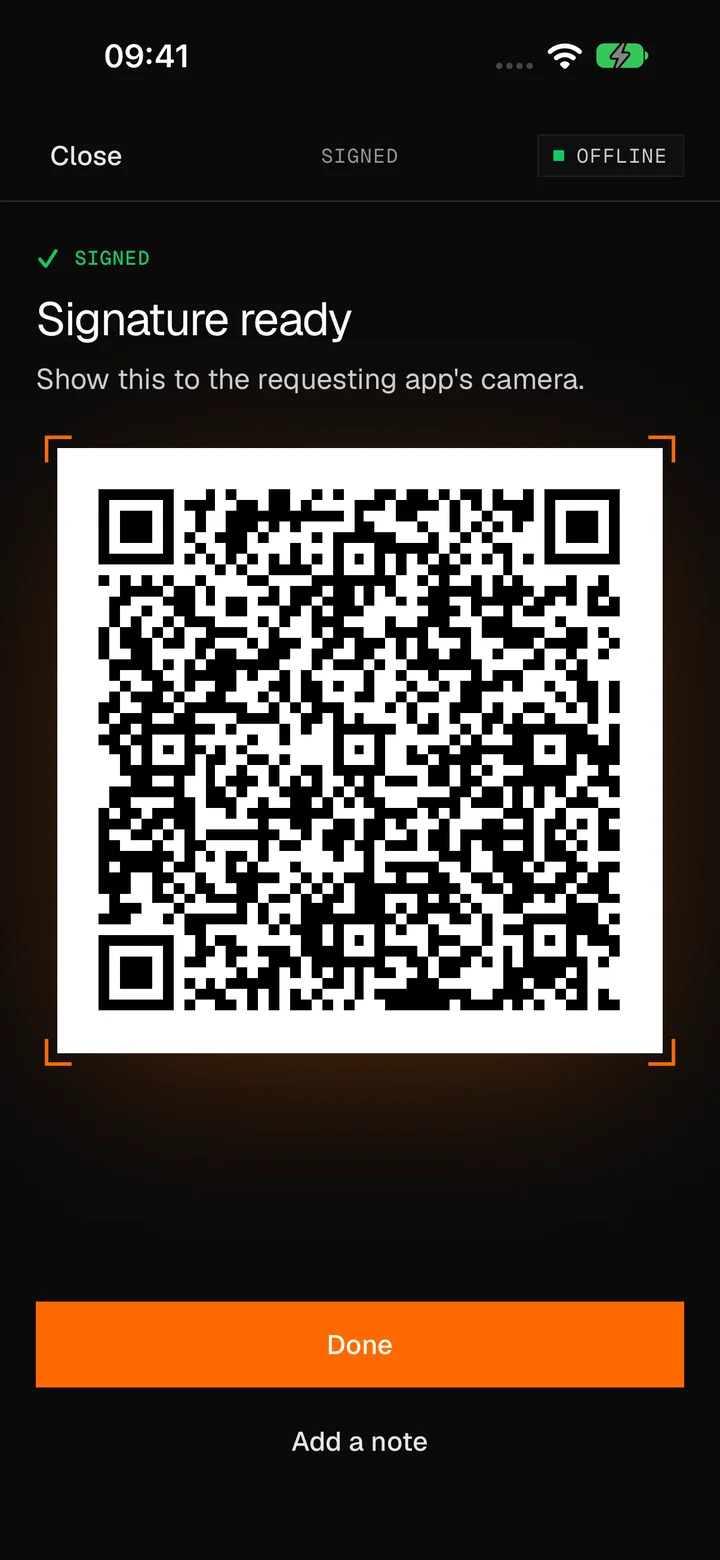
Show the signature
XE Vault shows the signature as a QR code, moving through several frames when it is large. The wallet reads it and sends the payment.


It checks that it is offline
XE Vault has no networking code, and every build is checked for it. On Android it doesn’t even ask for internet access. It also checks the phone it runs on.


What it checks
That no connection is usable, that the Wi-Fi and Bluetooth radios are off, that no VPN, hotspot or USB networking is up, and that Location Services are off.
What it asks you
Where the phone can’t tell for itself, XE Vault asks you to confirm, and goes on only once you have.
Before every signature
It checks again before it signs. While the phone is online, a screen covers the app, and nothing is signed until the phone is offline again.
It keeps a record
Each time the phone was online, XE Vault writes it in History, and says so until you have looked.
It shows everything before it signs
XE Vault reads the request itself and works out the hash it signs. It never signs a hash it is handed.
Every field, in full
The network, the account, the amount, the memo, and the whole address in groups of eight. Warnings come first, and the app that asked is named as it names itself, marked not verified.
Refused, not signed
A request it can’t show in full, or that breaks a signing rule, is refused. You see why, and a QR code that tells the app. Nothing is signed.
Messages and sign-ins
A message shows as text. A sign-in or a pairing says what it shares and that it is not a payment.


Where the keys are
On this phone only, behind its secure hardware and your passcode.
Sealed by the phone’s hardware
The phrase is encrypted under the Secure Enclave on iPhone, and StrongBox or the TEE on Android. Every use needs Face ID, a fingerprint or the passcode. Removing the passcode erases the keys.
Not in any backup
The keys never leave the phone in a backup, a sync or a QR code. Your paper is the only copy.
The phrase stays hidden
It shows only while you hold it, hides after 60 seconds, stays hidden while the screen is recorded, and each time it is shown is written in History.
A modified phone gets a warning
If the phone looks jailbroken or rooted, XE Vault says so and asks you to type I UNDERSTAND before it goes on.


New networks, without going online
XE Vault comes with XE Sim and the XE testnet. Other networks arrive as a QR code signed by XE’s verifier key.
Signed, and newer
An update is applied only if XE’s verifier signed it and it is newer than the last one, after Face ID or your passcode.
It can add, not rewrite
An update can add a network. It can’t change how XE Vault reads a request, rename a built-in network, or make a test network carry value.


Works with the rest of XE
Online wallets show the requests and send what XE Vault signs. The keys stay on the offline phone.
- XE Wallet on your phone
Add XE Vault’s accounts, send from them and receive to them. XE Wallet shows each request; XE Vault signs it.
- Web Wallet
Choose XE Vault as the signer: the request shows on the computer’s screen, and the camera reads the answer.
- Browser extension
The same: a QR code in the extension, one back from XE Vault.
- Ledger app
Your paper phrase gives the same accounts on a Ledger.
- MetaMask Snap
And the same accounts in MetaMask.
Get the beta
XE Vault signs for XE Sim and the XE testnet. XE there has no value.
iPhone
Public TestFlight beta: coming soon
iOS 17 or newer, with a passcode set.
Android
Android build: coming soon
Android 11 or newer, with a screen lock set.
Questions
Which phone should I use?
A spare one you can keep in airplane mode for good, reset to factory settings, with a passcode. An iPhone with iOS 17 or newer, or Android 11 or newer.
How do I update XE Vault?
Turn Wi-Fi on, update XE Vault and nothing else, then turn airplane mode back on before you open it.
Does it check while it is closed?
No, only while it is open. Keep the phone in airplane mode all the time.
What if I lose the phone?
Your paper phrase restores the same accounts in a new XE Vault, on a Ledger or in MetaMask. Never type it into an online wallet. If you lose both the paper and the phone, the XE is gone.
Has it been audited?
No. There has been no security audit yet, and the source is not public yet.
Found a problem?
Write to info@internml.com with what you did, what you expected and, if you can, a photo of the screen. Never send your recovery phrase.